
Apple Preview comments overlap when printing
If your Apple Preview comments become unreadable, overlap, or print badly, here is how to fix it.
Native Mac app • One-time purchase • Cleaner printed comments
Why Preview comments overlap
Apple Preview is convenient for adding PDF comments, but it has limited layout handling when those annotations need to be printed. The more comments a page contains, the harder it is to keep them readable.
Limited layout handling
Preview annotations are useful on screen, but they are not automatically reorganized into a polished printed review layout.
Many notes on the same page
When several comments sit close together, Apple Preview comments overlap or compete for the same small area.
Narrow margins and poor readability
Dense documents and small margins leave little space for comments, which can create a Preview annotations printing issue.
Quick temporary fixes
These workarounds can help when you need to print comments from Preview on Mac right away. They are useful in a pinch, but they do not create a reliable long-term workflow for heavily annotated PDFs.
Zoom before printing
Try enlarging the page or printing a reduced page range so the specific comments are easier to inspect.
Remove extra notes
Delete or simplify comments that are no longer needed to reduce collisions on crowded pages.
Print comments separately
Move the comment text into a separate document when the printed PDF itself cannot hold the annotations clearly.
Move comments manually
Reposition notes one by one in Preview to avoid overlaps before exporting or printing.
A better long-term solution
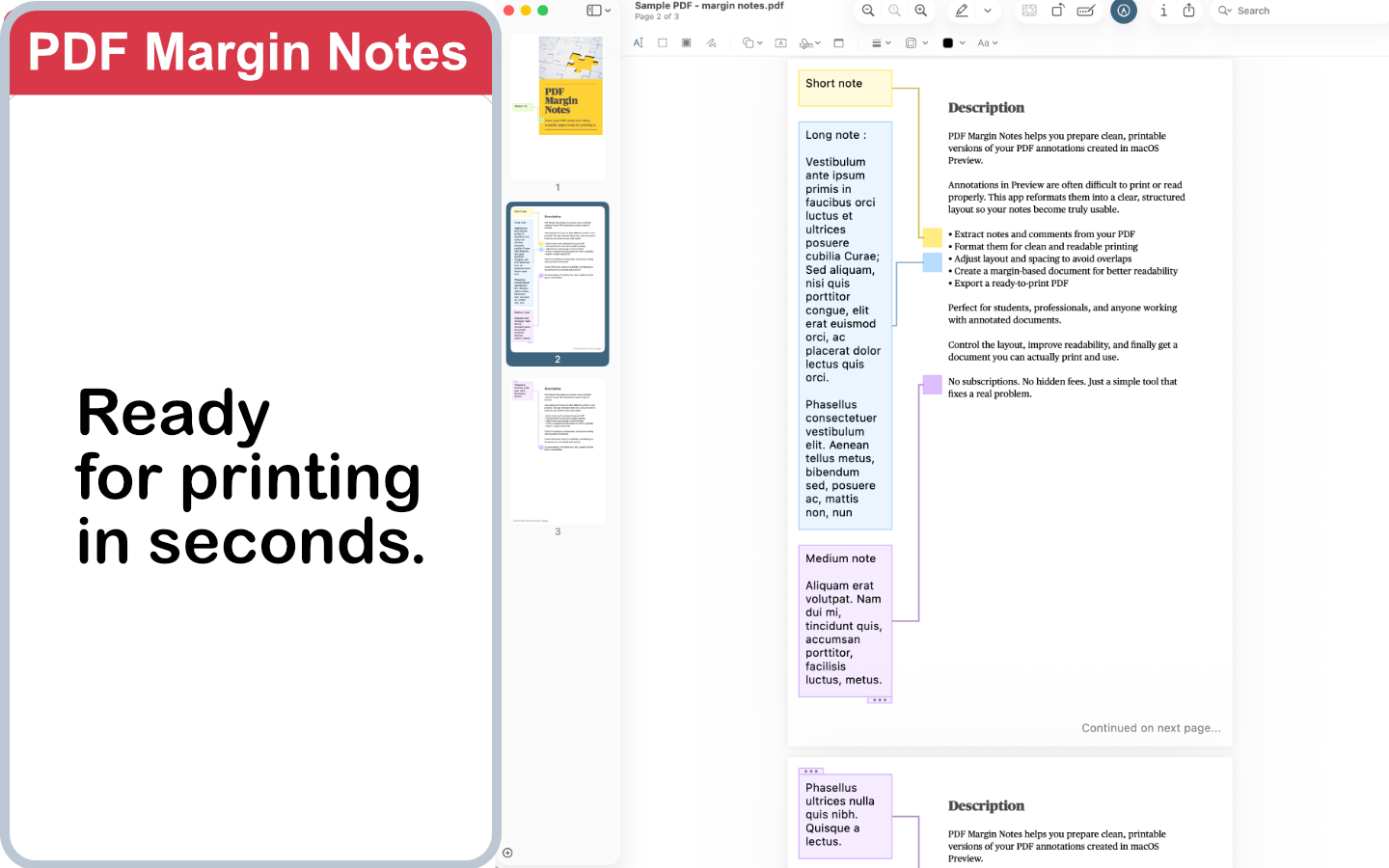
PDF Margin Notes gives Mac users a cleaner way to handle overlapping comments. It reorganizes Apple Preview comments into a readable layout, avoids collisions between annotations, and creates a clean printable PDF for review, sharing or archiving.
- Reorganizes comments into a readable layout
- Avoids collisions between crowded annotations
- Creates a clean printable PDF
- Runs as a native Mac app
- Available as a one-time purchase
How it works
Open the annotated PDF
Choose the PDF with Apple Preview comments that overlap, print badly or become hard to read.
Reorganize the comments
PDF Margin Notes moves comments into a cleaner layout with more readable spacing.
Export a printable PDF
Save the cleaned-up PDF and print it from your normal Mac workflow.
FAQ
Why do Apple Preview comments overlap when printing?
Apple Preview has limited print layout handling for dense annotations. When many notes sit on one page or margins are narrow, comments can overlap or become too small to read.
Can I fix overlapping Preview comments manually?
Yes. You can move comments, remove unnecessary notes, zoom, or print comments separately. These fixes can help for short documents but become slow for large PDFs.
What is the cleaner way to print comments from Preview on Mac?
PDF Margin Notes reorganizes comments into a readable layout and exports a clean printable PDF, which is more reliable for documents with many annotations.
Does PDF Margin Notes overwrite my original PDF?
No. The app exports a new printable PDF, so your original Apple Preview annotated file stays intact.
Is PDF Margin Notes a subscription?
No. PDF Margin Notes is a one-time purchase on the Mac App Store.
Fix overlapping Preview comments
Create a clean printable PDF from crowded Apple Preview annotations with PDF Margin Notes for Mac.